
How to print Google Sheets, set a print area and save it as PDF
Google Sheets prints from File, Print, and saves PDFs from File, Download, PDF, with the same settings in both: a sheet, the whole workbook or selected cells, fit to page or to width, gridlines, a header row on every page. There is no saved print area, but selected cells does the same job. Here is each setting, the fixes for a sheet that prints on twenty pages, and how to get a whole sheet as one image.
The short answer
Print: File → Print (Ctrl+P) → choose Current sheet, Workbook or Selected cells → Next. One page: Scale → Fit to page. PDF: File → Download → PDF. Print area: select the cells, then Selected cells.
How to print Google Sheets
Select what to print (optional). To print part of a sheet, select the range first. To print the whole sheet or every sheet, skip this.
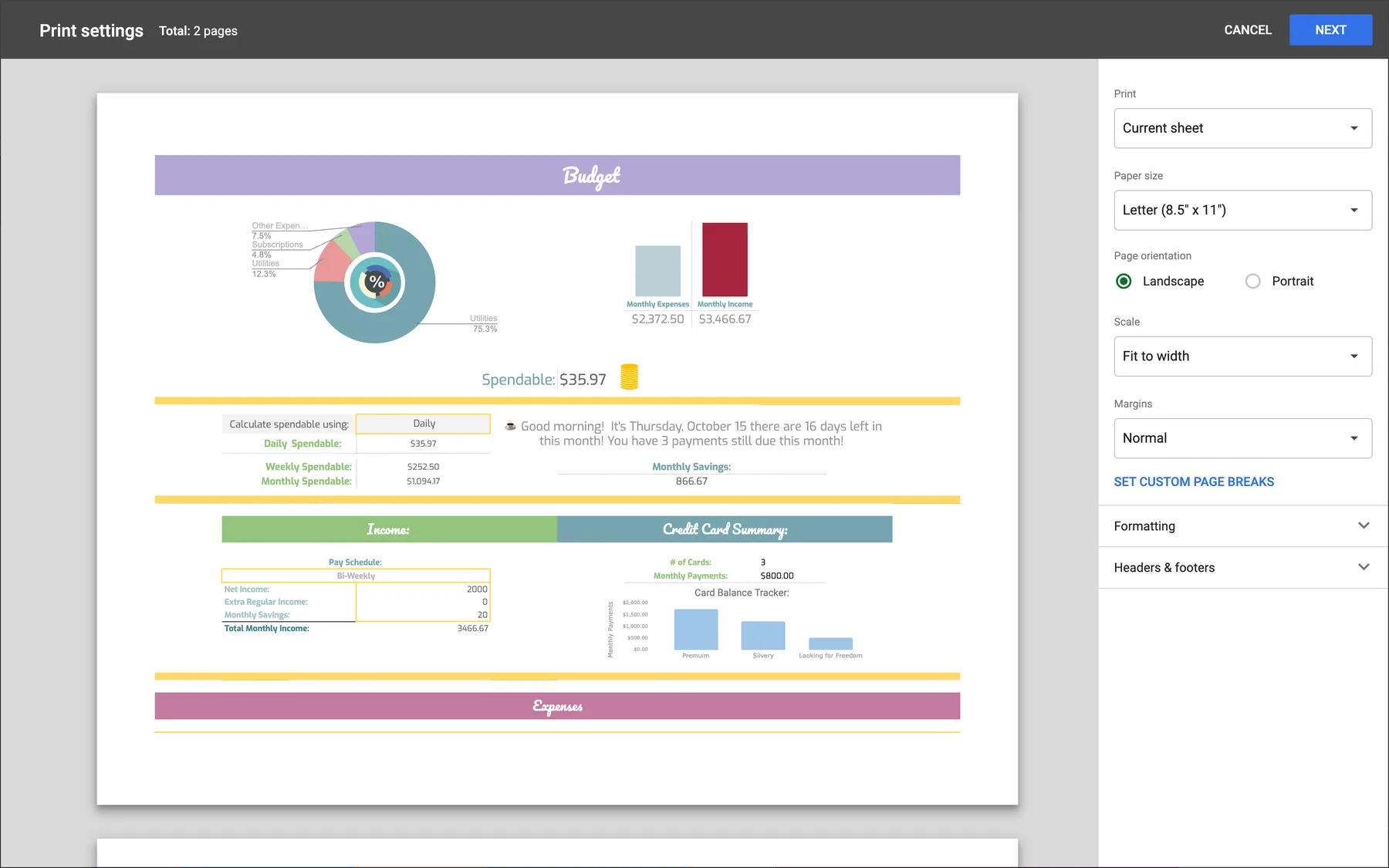
File, then Print. Or press Ctrl+P (Cmd+P on a Mac). The print settings open on the right, with a preview on the left.
Choose what to print. At the top: Current sheet, Workbook (every sheet) or Selected cells.
Set paper, orientation and scale. Letter or A4, Portrait or Landscape, and under Scale: Normal, Fit to width, Fit to height or Fit to page.
Next, then Print. Click Next. In Chrome the print dialog opens: pick a printer, or Save as PDF as the destination.
Google Sheets print area: print only some cells
Excel remembers a print area; Google Sheets does not. You get the same result in three ways:
- Selected cells. Select the range, File, Print, and pick Selected cells at the top. Quick, but you select it again next time.
- A print sheet. Add a sheet that pulls in the range with a formula, for example
={Sheet1!A1:F40}, and print that sheet whenever you need it. - Hide what you do not want. Hidden rows and columns are left out of the printout.
To control where pages end inside the range, use Set custom page breaks in the print settings and drag the blue lines.
Print a Google Sheet on one page
Open File, Print. With the sheet or the range selected.
Scale: Fit to page. Everything lands on one page. For a wide table that should keep a readable size, use Fit to width instead: the columns fit across, the rows run onto more pages.
Landscape and narrow margins. Landscape gives a wide table room; Margins, Narrow, takes back another few percent.
Gridlines, headers and a repeated header row
- Gridlines: Formatting, Show gridlines. Off, only borders you drew print.
- Notes: Formatting, Show notes, prints cell notes at the end.
- Header row on every page: freeze the row first (View, Freeze), then Headers & footers, Repeat frozen rows. Frozen columns repeat the same way.
- Page numbers, title, date: Headers & footers; Edit custom fields to place them.
- Page order and alignment: under Formatting, for tables wider and longer than a page.
Google Sheets to PDF
File, Download, PDF (.pdf). The same settings as printing open: what to export, paper size, orientation, scale, margins, gridlines, headers and footers.
Set it up like a print. Fit to width for wide tables, Selected cells for a range, Workbook for every sheet in one PDF.
Export. The PDF downloads to your computer.
Printing to Save as PDF gives the same file in Chrome. In Firefox and Safari, File, Print downloads the PDF directly.
The whole sheet as one image
Sheets draws its grid on a canvas and only the rows near the screen exist at any moment, so a screenshot tool cannot scroll a big sheet into one picture reliably. The PDF can: export it fit to width, and capture the PDF in Chrome, where FullPage Capture, a free extension that turns a PDF into one image, captures every page as one tall image.
Download the sheet as PDF. File, Download, PDF, with Scale set to Fit to width and no page breaks you mind.
Open the PDF in Chrome. Drag it into a Chrome tab, or open it from the downloads bar.
Click the FullPage Capture icon. Or press Ctrl+Shift+K (⇧⌘K). A PDF open in Chrome is captured whole: every page, fit to the width of the tab, in one tall image.
Save PNG or JPG. Or copy the image and paste it into a chat or a slide.
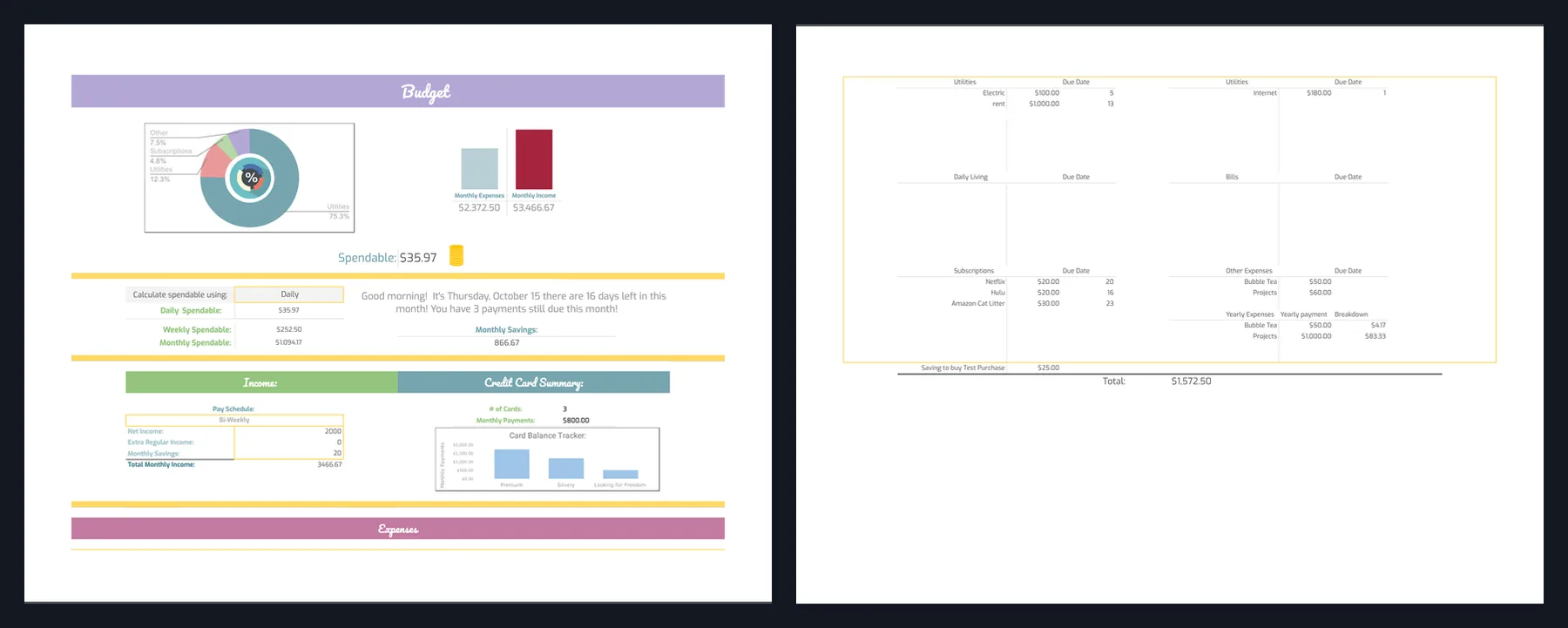
Other routes: File, Download, Web page (.html) gives a zipped HTML copy of the sheet, which the HTML to PNG converter turns into an image (pick the .html and its .css together). And for what is on screen, a dashboard or a chart, a plain capture is enough.
Turn the next PDF you open into one image. Free, no account, nothing is uploaded.
 Add to Chrome
Which method for which job
| File, Print / Download PDF | PDF + FullPage Capture | |
|---|---|---|
| Paper or a PDF to send | Yes | Yes |
| Only a range of cells | Yes | YesExport the range first |
| Fit to one page | Yes | Yes |
| Repeat header rows, page numbers | Yes | No |
| The whole sheet as one PNG | No | Yes |
| Mark up before sending | No | YesSaving an edited image is Pro |
Questions
How do I set a print area in Google Sheets?
Google Sheets has no saved print area like Excel. Select the cells you want, open File, Print and choose Selected cells. To print the same range often, put it on its own sheet (a formula such as ={Sheet1!A1:F40} keeps it up to date) and print that sheet.
How do I print Google Sheets on one page?
In File, Print, set Scale to Fit to page. If the text gets too small, use Fit to width with Landscape instead, so the columns fit and the rows continue on the next page.
How do I print with gridlines?
In the print settings open Formatting and tick Show gridlines. Borders you set with the Borders tool always print; gridlines only when that box is ticked.
How do I repeat the header row on every page?
Freeze the header row first (View, Freeze, 1 row). Then in the print settings open Headers & footers and turn on Repeat frozen rows.
Why does my sheet print on so many pages?
At Normal scale Sheets prints at 100% and splits wide tables into column strips. Fit to width, Landscape and narrow margins together usually bring it down to a few pages; Set custom page breaks lets you choose where pages end.
How do I save just one tab as a PDF?
File, Download, PDF, then choose Current sheet at the top. Workbook puts every tab into one PDF.
Can I save a Google Sheet as an image?
Sheets has no PNG export for the grid. A chart can be saved as PNG from its three-dot menu, Download. For the grid: a screenshot of what is on screen, or the PDF route above for the whole sheet as one image.
Can I print on my phone?
In the Google Sheets app, tap the three-dot menu, then Share & export, then Print; it prints the current sheet. The fit and range options are on the computer.
Try it on the page you are reading. Free, no account, no watermark. Nothing is uploaded.
Add to ChromeRelated
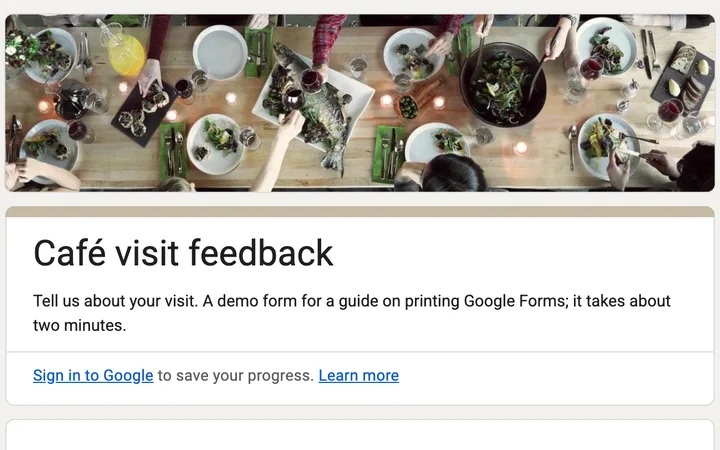 How to print a Google Form or save it as a PDFPrinting a blank form, a filled-in form before you submit it, and the responses: what Google Forms prints, where it falls short, and a PDF that looks like the screen.
 HTML to PNG and JPG converterPaste HTML or open an .html file, get a PNG or JPG at up to 3x. Free, in the browser, nothing uploaded; live pages go through the extension.
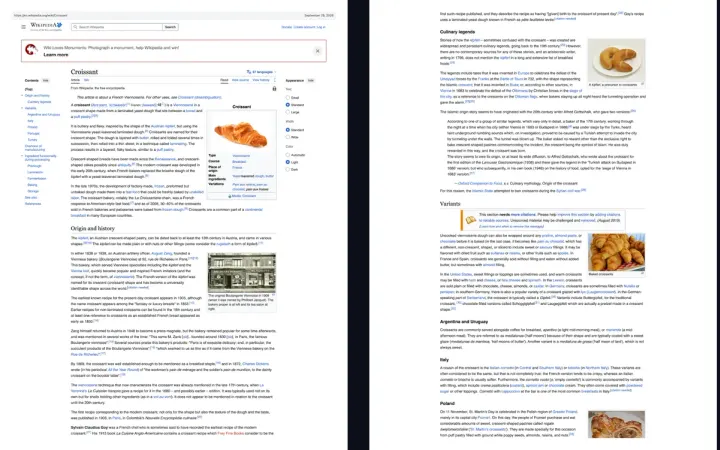 Save any webpage as a PDF, without cutting it offWebpage to PDF that looks like the screen: one long page or A4, Letter, Legal with page breaks between lines and clickable links.