
How to print a Google Form or save it as a PDF
Google Forms can print a blank form from the editor and print the responses, and it lays both out for filling in on paper, which turns a ten-question form into ten pages. It cannot print a form you are filling in. Here is how each of those works, where it falls short, and how to save any form, blank or filled in, as a PDF that looks the way it does on screen.
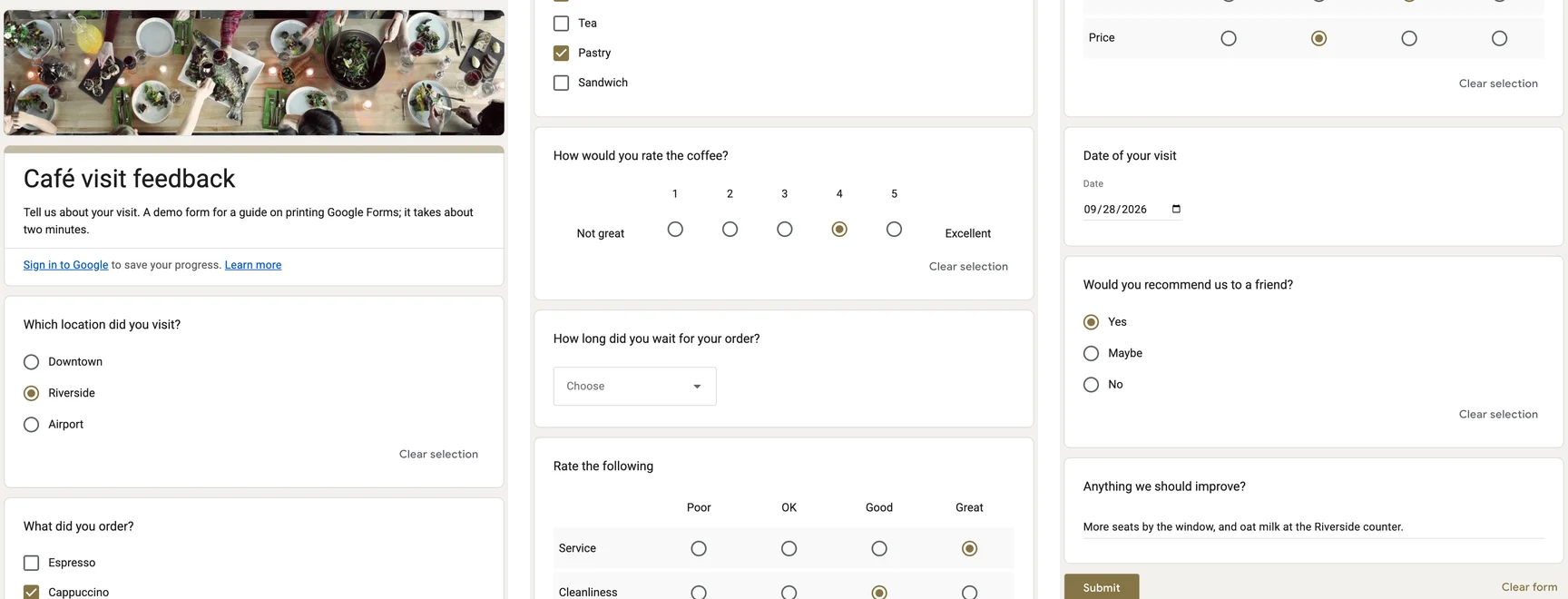
The short answer
Your own blank form: More → Print in the editor. The responses: Responses → More → Print all responses, or one response from the Individual tab. A form you are filling in, or any form that should look like the screen: capture it and save the capture as a PDF.
Print a blank form from the editor
Open the form in the editor. You need edit access. In forms.google.com, open the form you made or were added to as an editor.
More, then Print. Click the three-dot More menu at the top right and choose Print, or press Ctrl+P (Cmd+P on a Mac).
Save as PDF or print. In the browser dialog pick a printer, or Save as PDF as the destination.
What comes out is a paper version of the form: every question in its own block with space to write in, multiple-choice options stacked one per line, and section breaks on new pages. You cannot set how much space a question gets, so short forms often print at a page per question. Page breaks can land in the middle of a question, and images print at whatever resolution Google keeps.
Print or save the responses
Open the Responses tab. In the form editor, click Responses at the top.
All responses: More, Print all responses. Click the three-dot More menu in the Responses tab and choose Print all responses. Each response is laid out as a filled-in copy of the form.
One response: Individual. Switch to Individual, move to the response with the arrows and use its print button. Save as PDF in the dialog.
The Summary tab, with its charts, appears once there is at least one response; to keep it, capture it. For the numbers rather than the look, Link to Sheets or Download responses (.csv) are better than any printout.
Save a filled-in form before you submit
This is the case Google does not cover. Once you press Submit the answers leave your screen, and you only get a copy if the form owner turned on response receipts or quiz scores. Before you submit you have two ways to keep them.
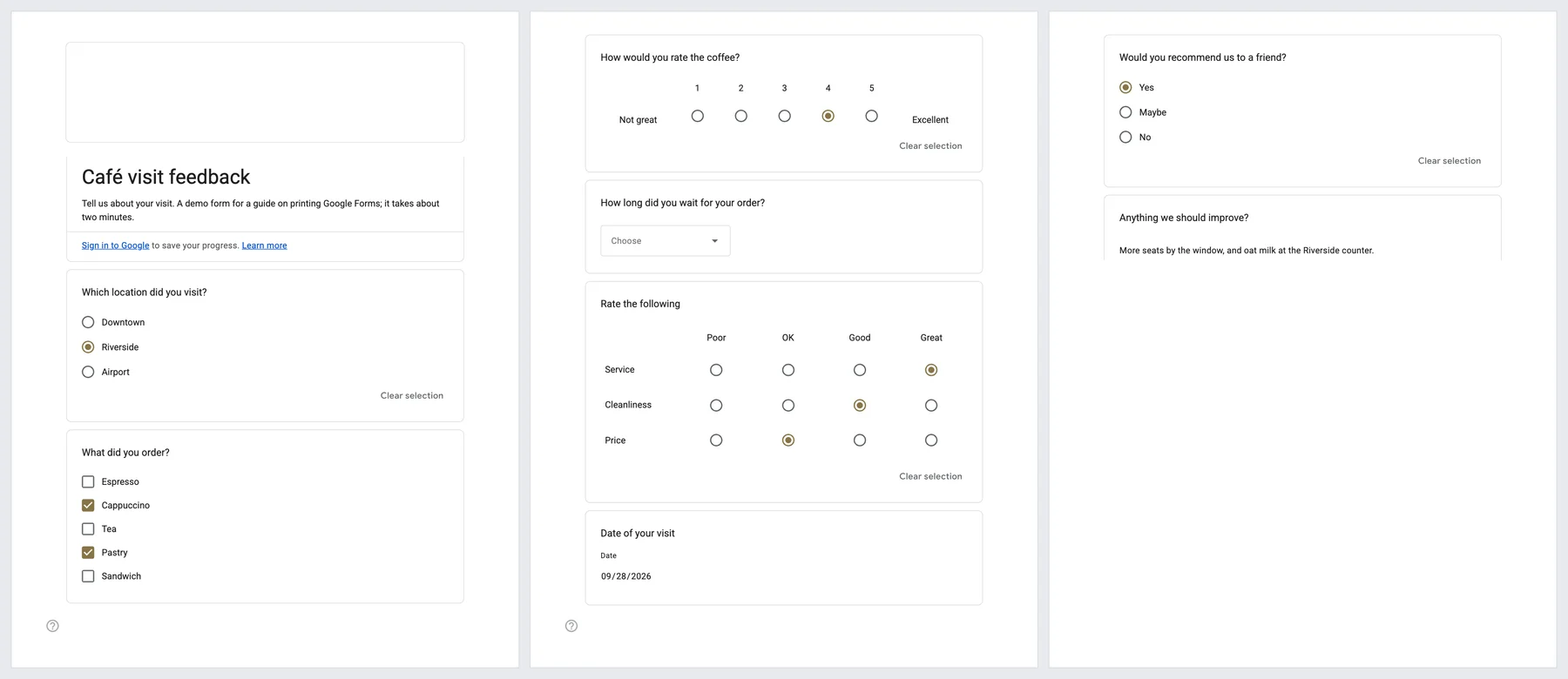
Ctrl+P on the form. We filled in the eight-question form on this page and printed it with Chrome's defaults. The answers survived: the ticked boxes, the chosen ratings and the written suggestion were all there. The header photo did not (an empty frame), the background was dropped, and the form ran to four Letter pages, the last one blank.
A capture, described next, which keeps the page as it looks.
Capture any form and save it as a PDF
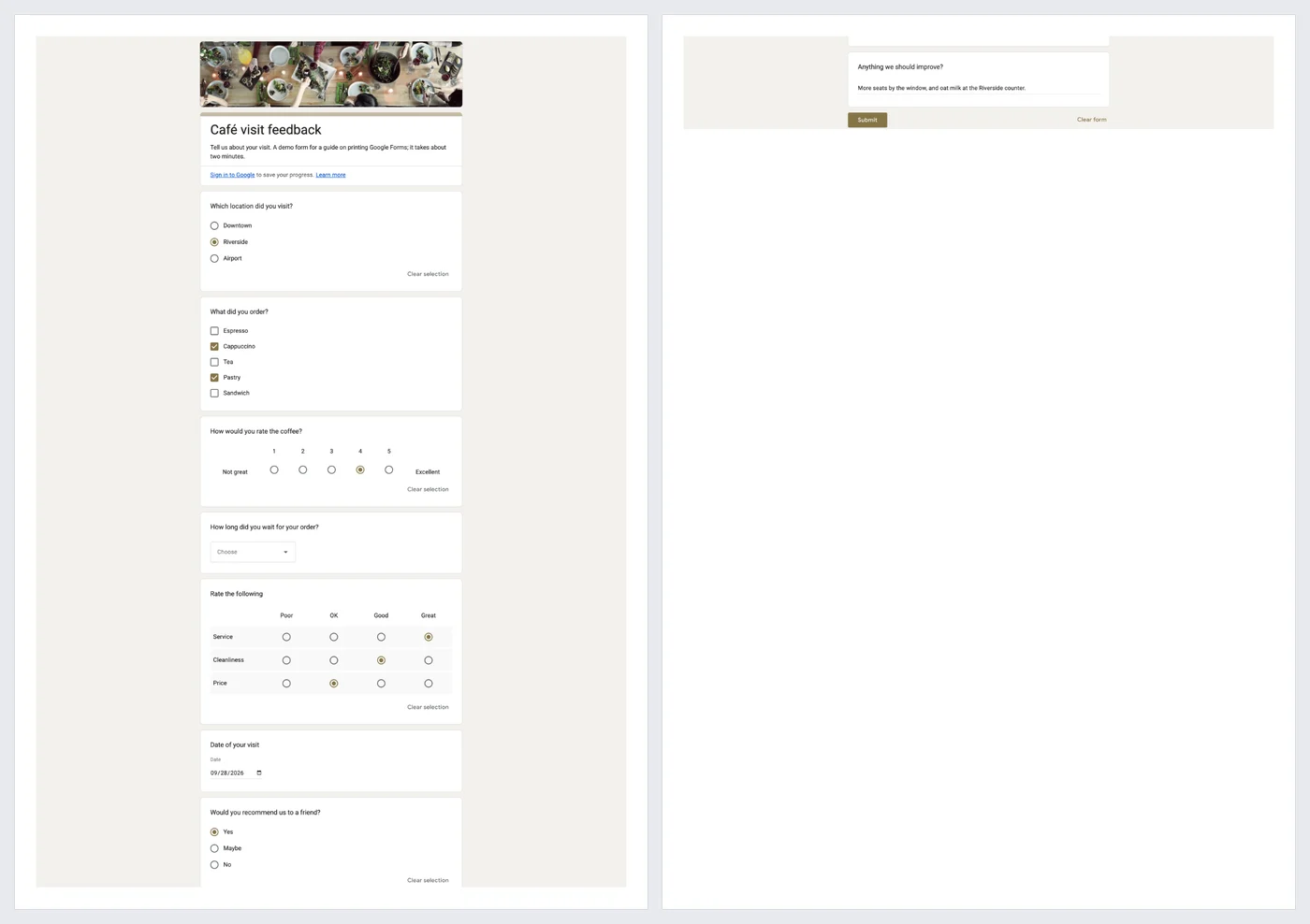
A capture keeps the form exactly as it looks: the header image, the theme colours, compact questions, and whatever you typed. These steps are for FullPage Capture, a free extension to save a Google Form as PDF, which we make.
Install FullPage Capture. From the Chrome Web Store or Edge Add-ons. Free, no account, no watermark.
Open the form, fill it in if you like. The live form, the one respondents see. Fill in your answers first if you want a copy of them; do not submit yet.
Click the extension icon. Or press Alt+Shift+K. The whole form, header image, sections on the current page and every answer you typed, is captured as one picture.
Save as PDF. Choose Letter or A4: page breaks fall between questions' lines, never through one. Or keep one long PDF page or a PNG. Then submit the form.
Keep a PDF of the next form you fill in. Free, no account, nothing is uploaded.
 Add to Chrome
Which method for which job
| Google Forms Print | FullPage Capture capture | |
|---|---|---|
| Blank form, your own | Yes | Yes |
| Form you are filling in | No | Yes |
| Looks like the screen | NoPaper layout | Yes |
| Compact (not a page per question) | No | Yes |
| All responses at once | Yes | NoCapture each, or use Sheets |
| All sections in one go | Yes | One section per capture |
| Needs edit access | Yes | No |
Questions
Why is my printed Google Form so many pages long?
The print layout is made for filling in on paper. Each question gets its own block with room to write, and you cannot control how much, so a short form can run to a page per question. A capture keeps the screen layout instead, which is far more compact.
Can I print a Google Form I do not own?
From the editor, no: you need edit access. As a respondent you can print or capture the live form in your browser, including your answers before you submit.
How do I keep a copy of my answers?
If the form owner turned on response receipts, tick the option to get a copy by email (or you get one automatically). Quizzes may show View score after submitting. If neither is on, capture or print the form before you press Submit, because afterwards there is nothing to print.
Do multi-section forms print all sections?
Printing from the editor prints every section, usually each on a new page. On the live form, only the section you are on is on screen, so capture each section before pressing Next.
Can I get the responses as a spreadsheet instead?
Yes. In Responses, use Link to Sheets or Download responses (.csv). From Sheets, File, Download, PDF prints them as a table.
Is anything uploaded when I capture a form?
No. The extension captures inside your browser and writes the file to your disk. Nothing is sent to the form owner or to us. Privacy
Try it on the page you are reading. Free, no account, no watermark. Nothing is uploaded.
Add to Chrome