
How to export a Gemini chat to PDF
Gemini can now save a whole conversation as a PDF by itself: Download PDF in the chat's menu. Google's help pages have not caught up, and they still describe a public share link and an Export to Docs button under each answer. Here is what Gemini actually offered when we tried it in October 2026, what each option gives you, and how to keep a chat exactly as it looks on screen when a tidy document is not what you need.
The short answer
For a document of the whole chat: the three-dot menu at the top right of the conversation, Download PDF, then Save as PDF. For everything you ever asked: Google Takeout. For the chat as it looks on screen, one long image, or Gemini's pictures and layout kept: capture it and save the capture as a PDF.
Method 1: Download PDF
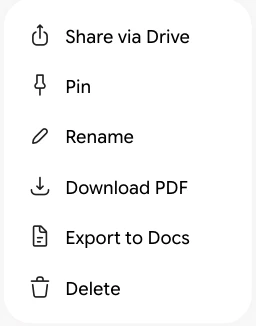
Open the conversation menu. In gemini.google.com, open the chat and click the three-dot menu at the top right of the conversation.
Choose Download PDF. Gemini lays the whole conversation out as a document and opens your browser's print dialog.
Save as PDF. Set Destination to Save as PDF and click Save. Turn on Background graphics under More settings if a table loses its shading.
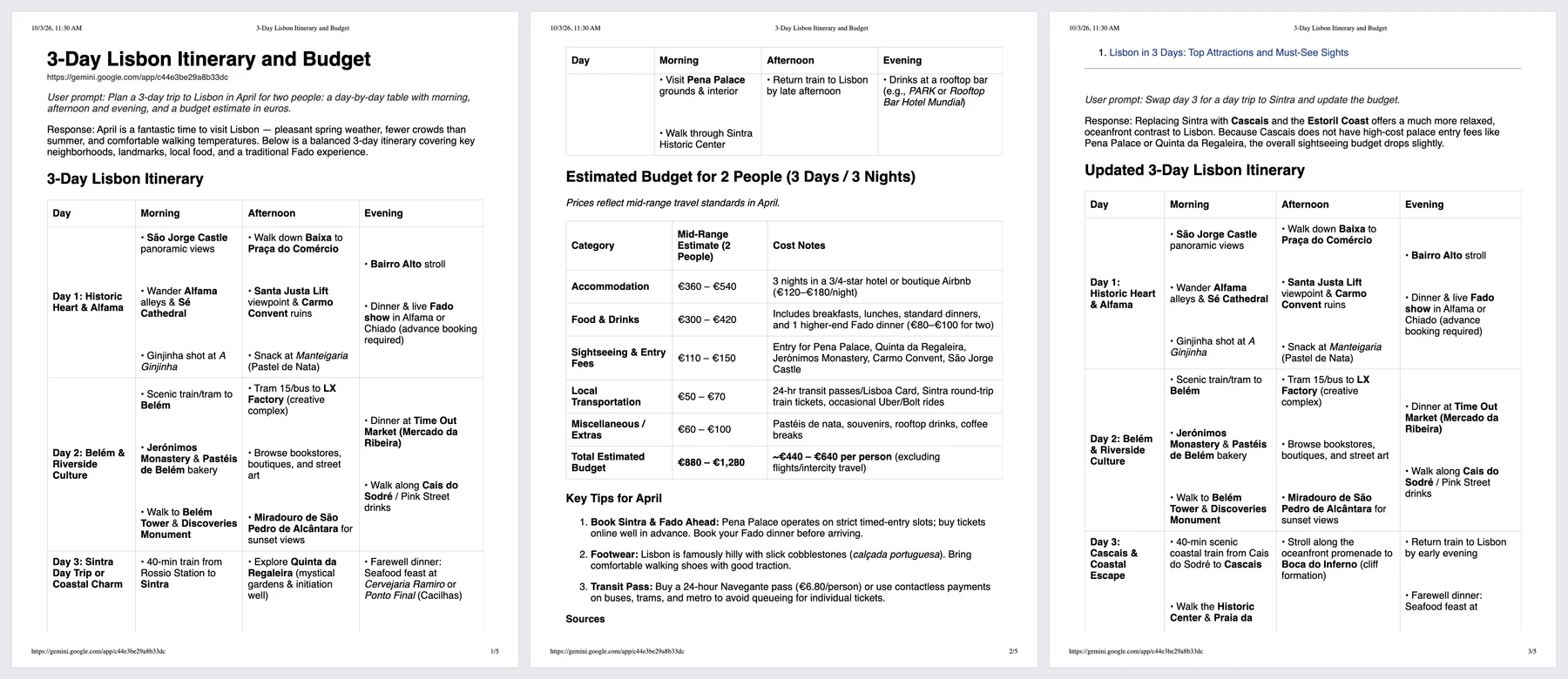
We tried it on a three-turn chat about a trip to Lisbon. The PDF had the chat's title and link at the top, each prompt in italics after User prompt:, each answer after Response:, both itinerary tables and both budget tables, and the sources Gemini had cited. Five Letter pages, with the date and the address in the page margins. It is the best built-in export any of the big three AI assistants has: a document you can read, search and send.
Plain Ctrl+P on the chat works too, as it happens: in our test it printed all three turns on six pages, but cut the wide itinerary tables at the right edge, which Download PDF did not.
What Download PDF is not is a picture of the chat. Gemini's layout, colours and the look of the conversation are replaced by a plain document, and wide tables are squeezed to the page width.
Method 2: Export to Docs
The same menu has Export to Docs, which creates a Google Doc in your Drive that you can edit. We did not test how much of the conversation it takes: Google's help page describes Export to Docs for a single answer, and the menu we saw offers it for the whole chat. Check the Doc before you rely on it.
Sharing: Share via Drive, or a public link
In our account the menu offered Share via Drive. It asked to connect Google Drive first, saying shared chats would be kept in a Gemini Conversations folder and protected by Drive permissions. Google's help page still describes the older public link (g.co/gemini/share), a snapshot of the whole chat that anyone with the link can read and that disappears when the chat is deleted, auto-delete included. Which of the two you see may depend on your account. Either way, a link is not a copy you keep.
Method 3: Google Takeout, for everything
Open Google Takeout. Go to takeout.google.com and click Deselect all.
Pick My Activity, then Gemini Apps. Tick My Activity, click All activity data included, Deselect all, tick Gemini Apps, OK. Ticking only the separate "Gemini" product gives you your Gems, not your chats.
Create the export. Next step, choose email delivery and a .zip, Create export. The link in the email stays active for 7 days.
You get your Gemini activity as an HTML log (or JSON, if you choose it), all of it at once. Useful for a backup or for leaving Google; not a way to save the chat you just had.
Method 4: capture the chat as it looks
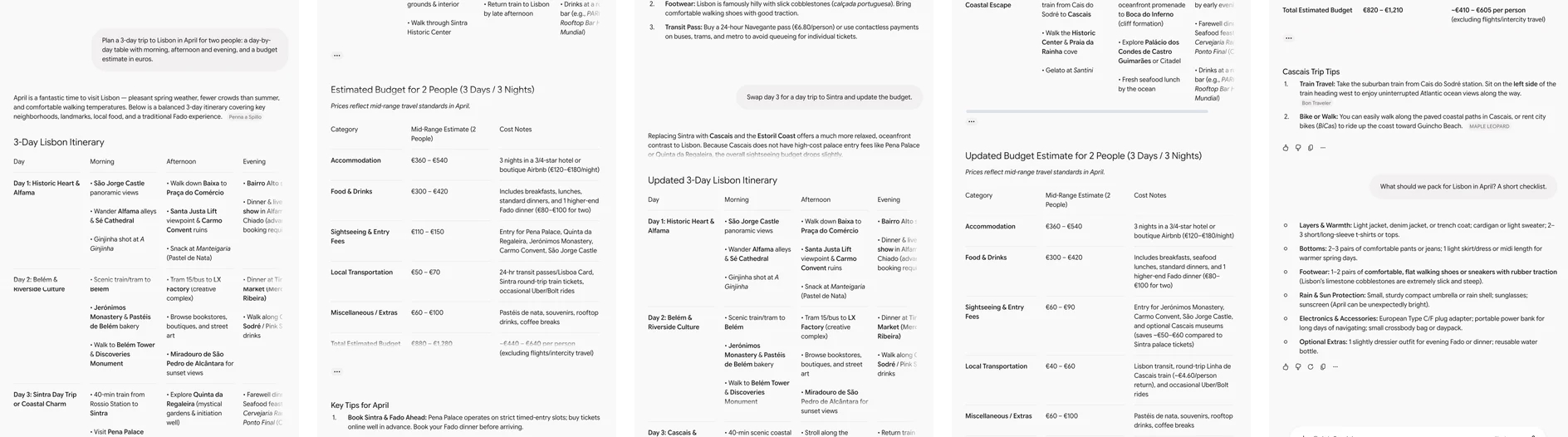
Download PDF gives you a document. When you need the conversation itself, the way it looked, as one long image for a slide or a bug report, with Gemini's images and layout in place, in dark theme, capture it. These steps are for FullPage Capture, a free extension to export Gemini chats to PDF, which we make.
Install FullPage Capture. From the Chrome Web Store or Edge Add-ons. Free, no account, no watermark.
Open the chat. In gemini.google.com, the way you want it to look: light or dark theme, sidebar open or closed.
Click the extension icon. Or press Alt+Shift+K. The extension finds the panel the chat scrolls in, scrolls it end to end so older turns load, and stitches it into one picture.
Save as PDF or PNG. Full image for one long PDF page, or Letter or A4 with page breaks between lines, or one tall PNG.
Keep Gemini chats exactly as they look. Free, no account, nothing is uploaded.
 Add to Chrome
Which method for which job
| Gemini Download PDF | FullPage Capture capture | |
|---|---|---|
| The whole conversation | Yes | Yes |
| Prompts and answers labelled | Yes | NoAs on screen |
| Looks like the screen | NoDocument layout | Yes |
| Searchable text | Yes | Pro |
| One long image (PNG) | No | Yes |
| Works on any AI chat | NoGemini only | Yes |
| Nothing to install | Yes | NoFree extension |
Questions
Can Gemini save a whole chat as a PDF?
Yes, in the version we used in October 2026: the conversation menu has Download PDF, which prints the whole chat as a document through your browser's print dialog. Google's help pages do not describe it yet, so if you do not see it, update the page or check again later.
What does the Download PDF file look like?
A clean document, not the screen: the chat title and link at the top, each of your messages labelled "User prompt" and each answer "Response", tables kept as tables, and the sources Gemini cited listed under the answers. Our three-turn chat came out at five Letter pages.
Can I export a Gemini chat to Google Docs?
The same menu has Export to Docs, which creates a Google Doc in your Drive. We did not test how much of the chat it takes; Google's help page describes it for single answers.
What is Share via Drive?
When we tried it, Gemini asked to connect Google Drive and keep shared chats in a Gemini Conversations folder, protected by Drive permissions. Google's help page still describes a public share link instead, so which one you get may depend on your account.
Can I ask Gemini to make a PDF of our conversation?
Since April 2026 Gemini can create PDF, Word and Markdown files on request. It writes them from the chat, so it may summarise or rephrase. Download PDF or a capture keeps what was actually said.
Does it work with a work or school account?
Your administrator may turn off sharing or exports. Capturing works on whatever your browser shows you.
Also using ChatGPT or Claude? Neither has a Download PDF button yet: see save a ChatGPT conversation as a PDF and export a Claude chat to PDF.
Try it on the page you are reading. Free, no account, no watermark. Nothing is uploaded.
Add to Chrome