
How to save a ChatGPT conversation as a PDF
ChatGPT has no Save as PDF button. Its data export sends you every chat you ever had, its share link is a web page that can disappear, and printing gives you a paper version that may stop short on a very long chat. Here is what each built-in option really gives you in 2026, tested, and how to save one whole chat exactly as it looks, code and tables included, as a PDF or a single image.
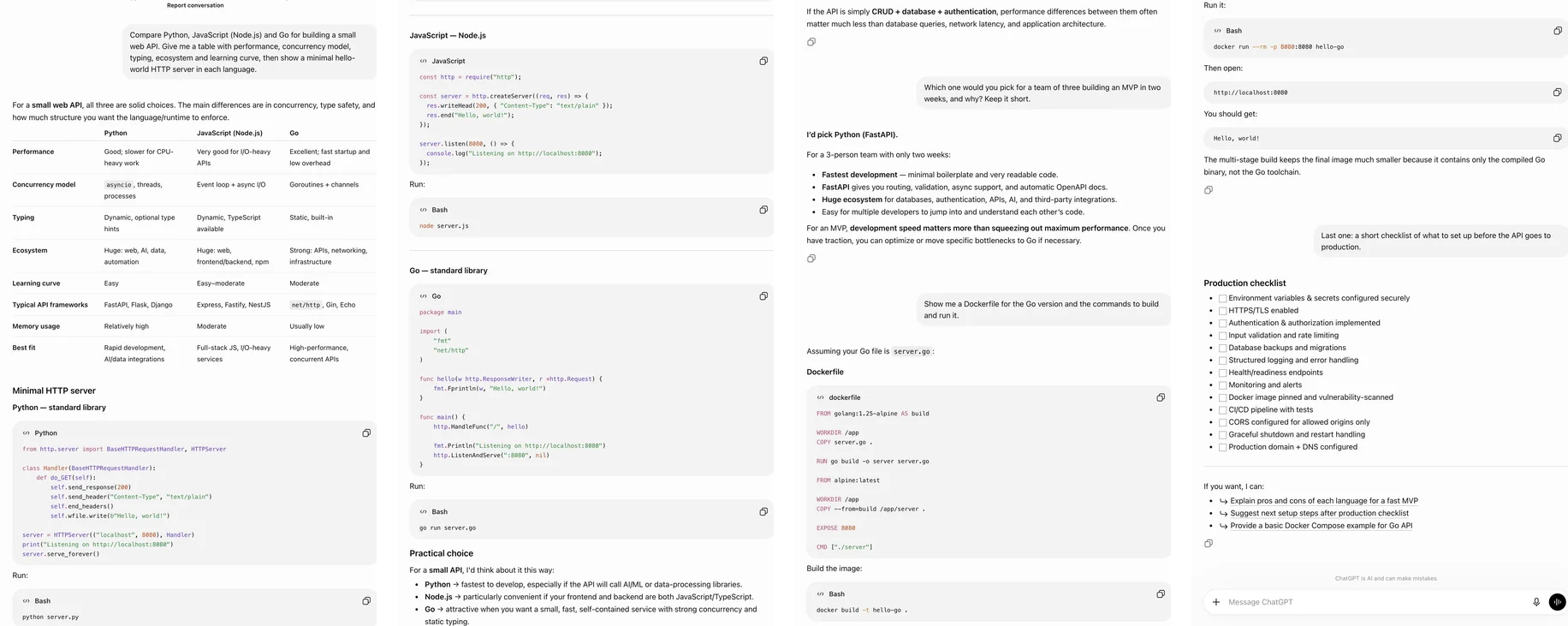
The short answer
For a backup of everything, use Settings → Data controls → Export data. To send one chat to someone, use Share. For a plain document of a short or medium chat, print its share link to PDF. To keep a conversation exactly as it looks on screen, or a very long one in full, capture it with a full page screenshot extension and save the capture as a PDF.
Method 1: the data export, for a backup of everything
Open Data controls. Click your profile picture, then Settings, then Data controls.
Request the export. Next to Export data choose Export, then Confirm export. It is available on Free, Go, Plus and Pro, not in Business or Enterprise workspaces.
Download it within a day. OpenAI emails a Download data export link. It can take anything from minutes to several days to arrive, and the link stops working 24 hours after it does.
What arrives is a ZIP with your whole history in it: conversations.json with every chat as data, plus other account files. It is a good backup and a poor way to keep one conversation. There is no option to export a single chat, nothing in the ZIP is a PDF, and if you want the chat you had last Tuesday you have to dig it out of a file that may hold hundreds of others. On 25 September 2026 OpenAI support confirmed to a user that this is the official route for one long chat.
Method 2: a share link, to send one chat
Open the chat, click Share, then Create link. Anyone with the link can read the conversation without signing in, and can press Continue to carry it on in their own account. It is a snapshot: messages you add later are not in it until you press Update link.
It is not a copy you own. The link dies if you delete the chat or the link (Settings → Data controls → Shared links), and it lives on OpenAI's servers, not your disk. Treat it as a way to show a chat, and as a handy public page to capture from.
Method 3: print the share link to PDF
Open the chat's share link, press Ctrl+P (Cmd+P on a Mac) and choose Save as PDF. We tried it on 3 October 2026 with the four-question chat on this page, signed out: Chrome produced five Letter pages with the whole conversation. The sidebar and buttons were gone, the table and every code block were there, your messages became plain text without their bubbles, and the code lost its colours. A clean document, if not the screen.
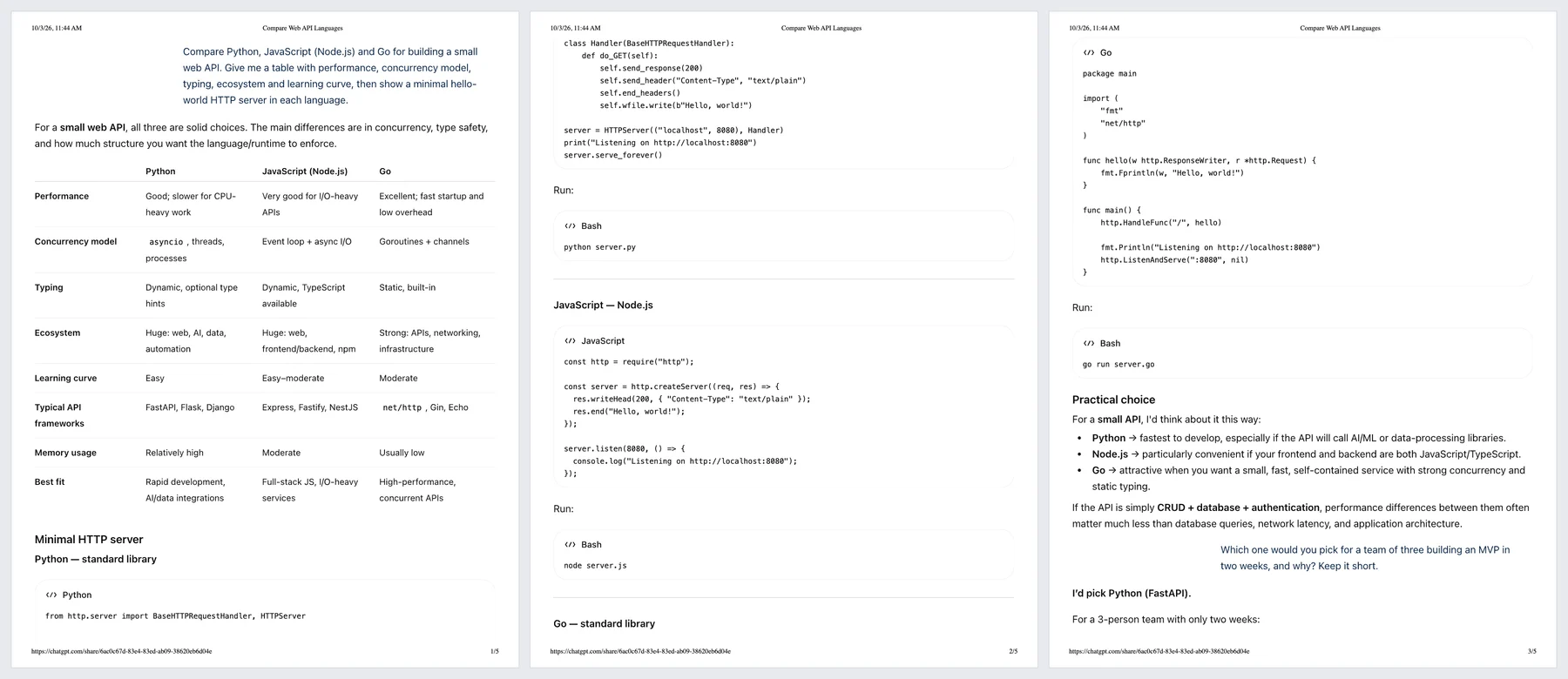
Where printing lets you down:
- Very long chats. Since September 2026 users on OpenAI's forum report that long conversations load in sections, on share pages too, and only the loaded part prints. Our chat was too short to show it.
- Folded messages. Long messages sit behind Show more, and folded text does not print.
- It is the paper version. Wide tables and code are re-flowed or cut at the paper edge, the dark theme becomes white, and nothing looks the way you saw it.
Method 4: copy, Pages, or asking ChatGPT for a PDF
Each answer has a Copy button, and writing and code blocks have their own Copy and, in full screen, a download option. All of these work one answer or one block at a time. Canvas used to download whole documents as PDF, Word or Markdown; OpenAI retired canvas on 28 May 2026. The new Pages feature (Pro, Business and Enterprise, from 29 September 2026) turns a chat into an editable document, which is useful for publishing a cleaned-up version, not for keeping what was said.
You can also ask ChatGPT to put the conversation into a PDF. It will write a new file from the chat, and it may shorten or reword it along the way. Fine for notes, not for a record.
Method 5: capture the whole chat and save it as a PDF
A full page screenshot extension keeps what printing throws away: it scrolls the panel the chat lives in, waits for each section to load, and stitches every screen into one image, which it can then lay out as PDF pages. What you get is the conversation exactly as you saw it, bubbles, dark theme, code colours and wide tables included, however long it is. These steps are for FullPage Capture, a free extension to save ChatGPT chats as PDF, which we make.
Install FullPage Capture. From the Chrome Web Store or Edge Add-ons. Free, no account, no watermark.
Open the conversation and expand it. Open the chat in chatgpt.com, or its share link. Click Show more on any long message you want in full, and close the sidebar if you do not want it in the picture.
Click the extension icon. Or press Alt+Shift+K. The extension finds the panel the chat scrolls in, scrolls it from the first message to the last, lets every section load, and stitches what it saw into one picture.
Save it as PDF or PNG. In the result tab choose Full image for one long PDF page, or Letter or A4 with page breaks between lines. Or save one tall PNG. The file is written on your computer.
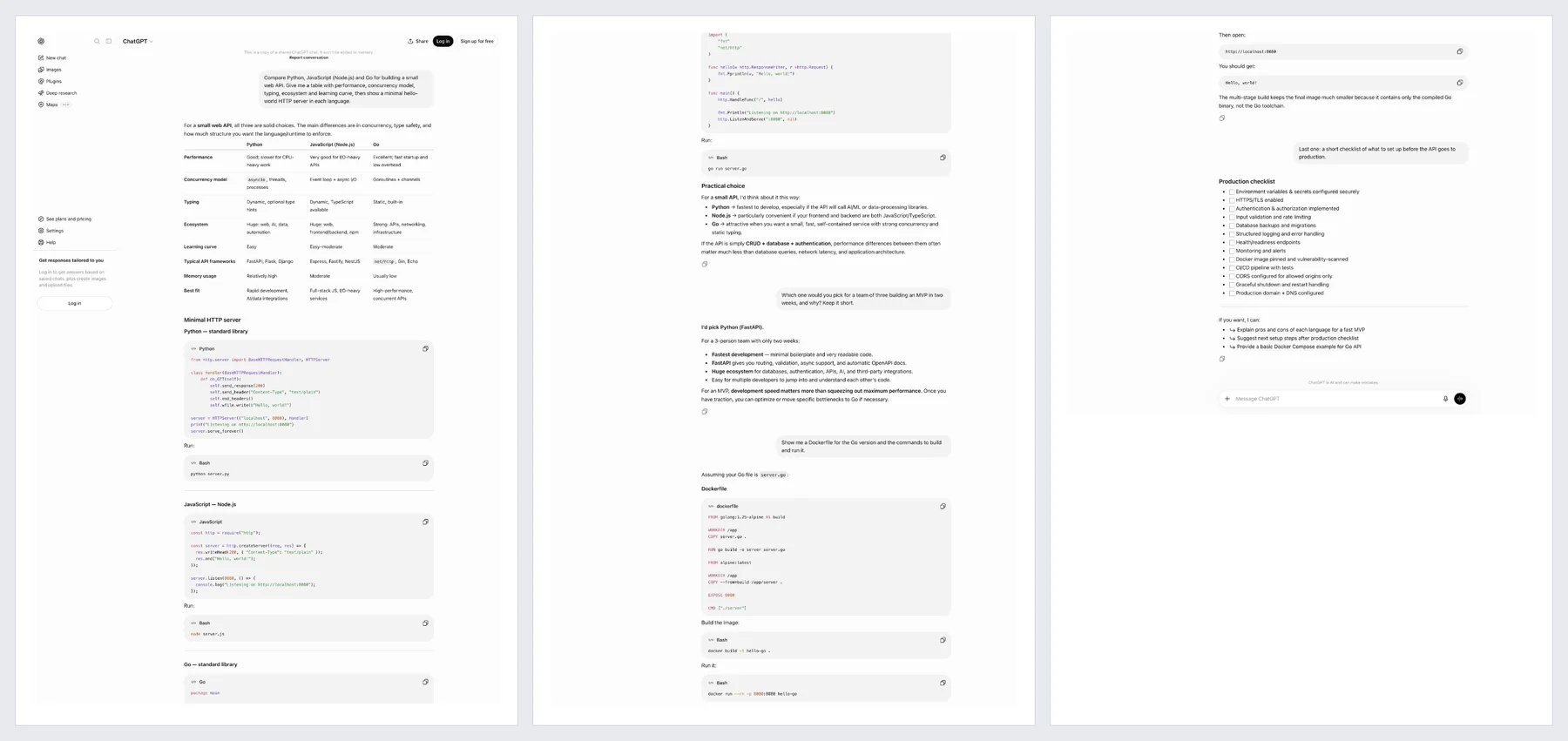
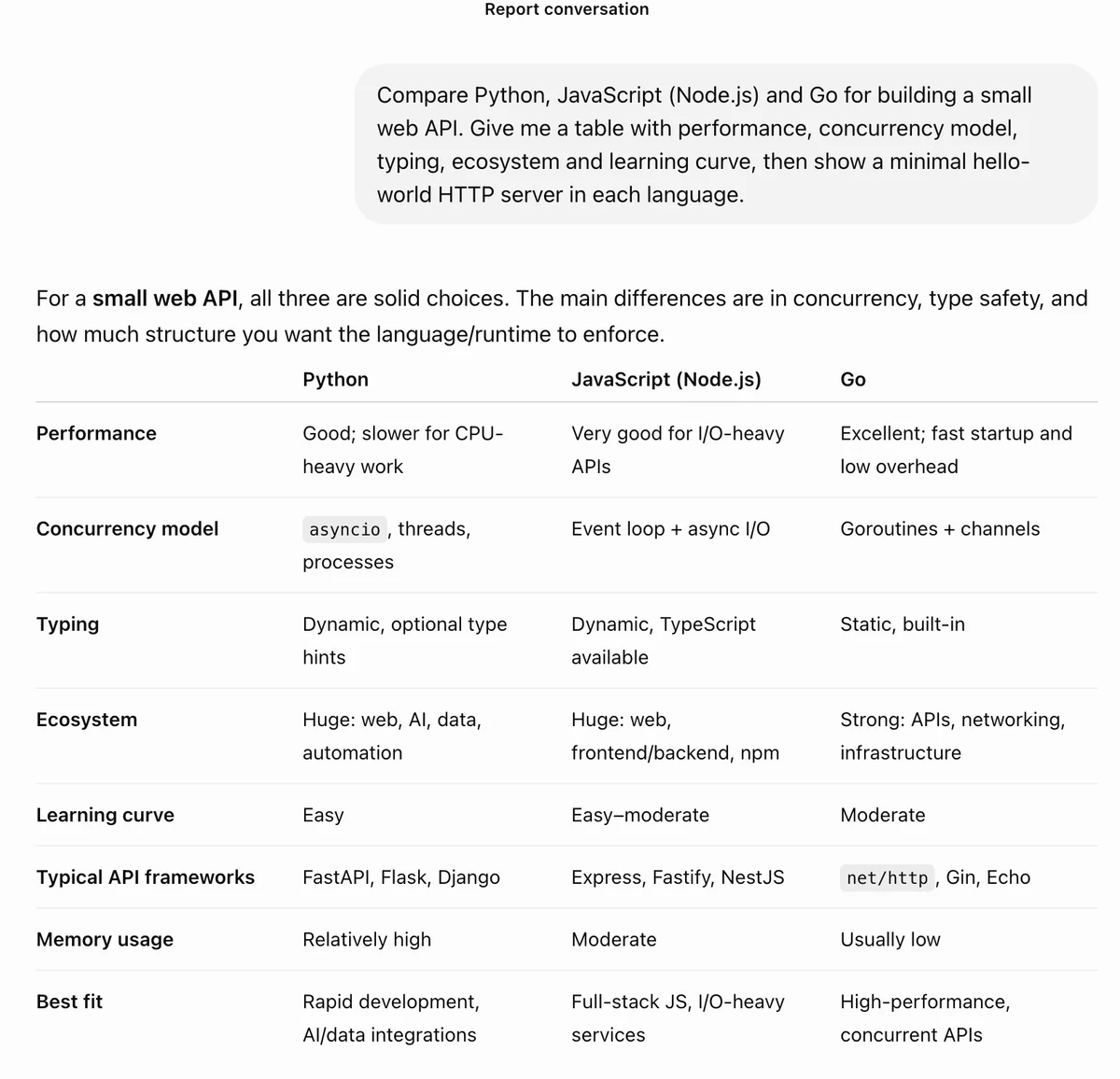
Save your next ChatGPT conversation as a PDF. Free, no account, nothing is uploaded.
 Add to Chrome
Which method for which job
| ChatGPT's own options | FullPage Capture capture | |
|---|---|---|
| One conversation as a file | NoExport is the whole account | Yes |
| Looks like the screen | No | Yes |
| Long chats in full | Export as JSON; print if fully loaded | Yes |
| Code colours and wide tables kept | NoPrint drops colours, re-flows | Yes |
| Print, paper layout | Yes | |
| Searchable text | Export, as JSON | Pro |
| Stays on your computer | NoExport is emailed; links live on OpenAI | Yes |
| Works on phone | Share link | No |
Questions
Can I export just one ChatGPT conversation?
Not with a built-in button. The data export always contains your whole account, and OpenAI support's own advice for a single chat is to find it inside conversations.json. A share link covers one chat but is a web page, not a file. To get one conversation as a file, capture it.
Why does Ctrl+P print only part of my chat?
On a short chat it should not: in our test the share link printed in full. On a very long one, ChatGPT loads the conversation in sections as you scroll, and the messages that are not loaded are not on the page to print. Long messages folded behind Show more are left out too. A capture scrolls through and loads everything first.
What happened to the canvas download button?
Canvas could download PDF, Word and Markdown files from June 2025. OpenAI replaced canvas with writing blocks and code blocks on 28 May 2026. Those have Copy and, in full screen, a download option, but they cover one block, never the whole chat.
Can I just ask ChatGPT to make a PDF of the conversation?
You can, and sometimes it works. But the model writes a new document from the chat: it can shorten, reword or drop parts. For a record of what was actually said, use the export or a capture.
Does the PDF keep code blocks and tables?
In a capture, yes, exactly as they look on screen, including syntax colours and wide tables that would be clipped by printing. Lines are never cut between PDF pages.
Is the text in the PDF selectable?
The free PDF is an exact picture of the chat. FullPage Capture Pro adds an invisible text layer, so you can search, select and copy the words. What Pro adds
Does my conversation leave my computer?
Not with the extension. It photographs the page inside your browser and writes the file to your disk; it makes no network requests of its own. The data export, by contrast, is prepared on OpenAI's servers and sent to you by email. How the extension handles privacy
How do I save a ChatGPT chat on my phone?
Phones do not run browser extensions. In the app, Share gives you a link you can open later on a computer and capture there. The Android app can also request the full data export.
Using Claude or Gemini too? The same problems, slightly different menus: export a Claude chat to PDF, export a Gemini chat to PDF, or all three side by side in how to save an AI chat as a PDF.
Try it on the page you are reading. Free, no account, no watermark. Nothing is uploaded.
Add to Chrome